
Step-by-step Tutorial
Connecting machines to manubes with an Edge Device
Learn how to install a manubes Edge Node on an edge device in your production network and configure a connection to a local OPC UA server.
Introduction
General information and setup
This guide uses a WAGO 752-940x series edge computer. The device runs the Kepware Edge OPC UA server as a Docker container.
Kepware Edge can connect directly to local controllers (Siemens, Allen-Bradley, Modbus) and expose the data via OPC UA. It can also aggregate data from other OPC UA servers.
The secure connection to manubes is established through a manubes Edge Node, which also runs as a Docker container on the edge device. It allows manubes to access Kepware Edge as an OPC UA client.
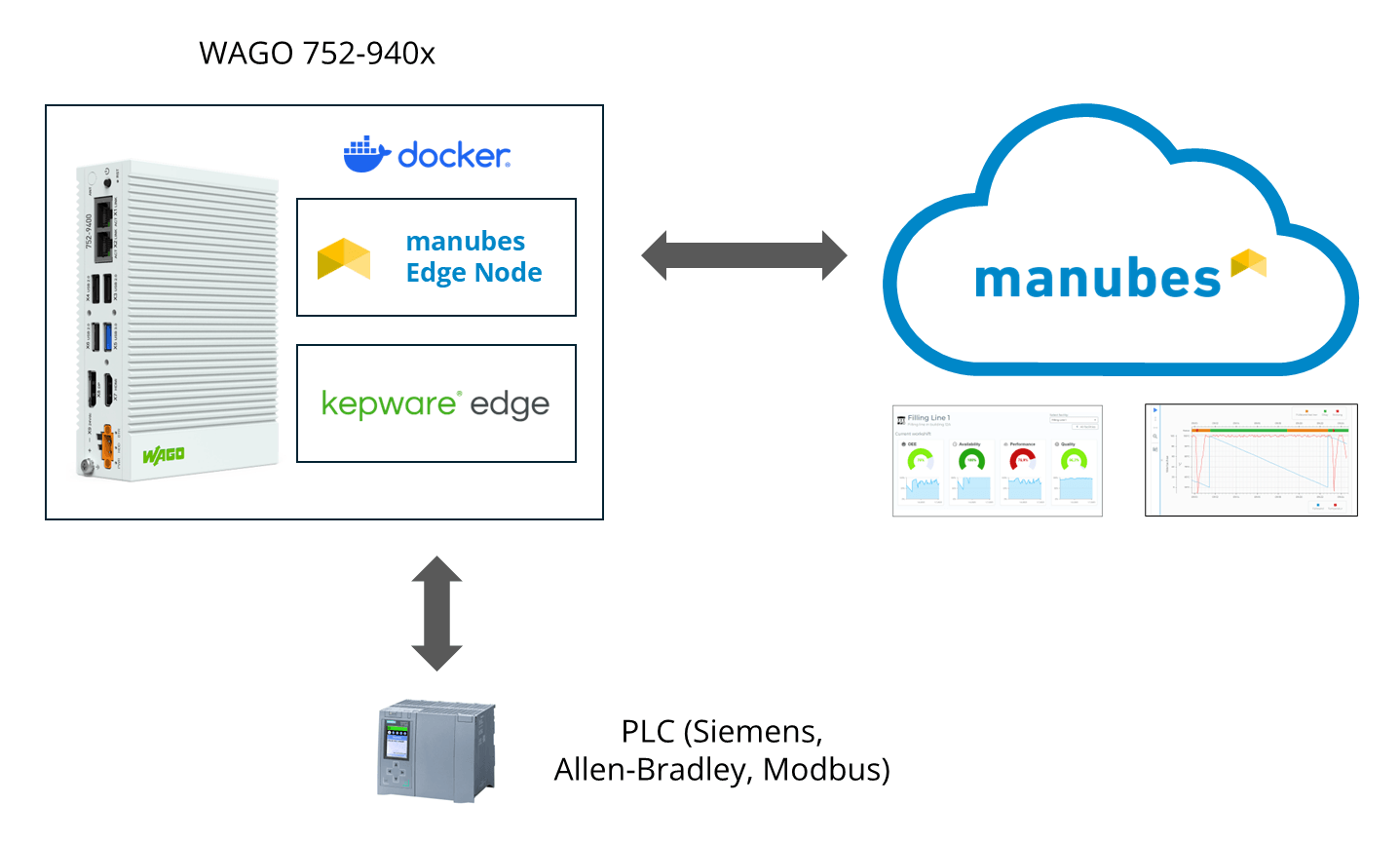
The following steps show how to:
- install a manubes Edge Node on an edge device at your production site to create a secure interface between your local production network and your manubes environment
- create an OPC UA Edge Connector to connect to the Kepware Edge instance on your edge device and configure data recording for selected OPC UA data points
- integrate the OPC UA data into live dashboards
Get your free manubes tenant to test the connection yourself.
Edge Node Installation
Step 1: Installing the manubes Edge Node on the edge device
manubes Edge Nodes are lightweight software components that you install on a target device in your production network using Docker or a Windows installer. They establish an outbound connection to the manubes cloud environment and enable secure data exchange between manubes and systems on the same network as the Edge Node (e.g. PLCs, SCADA systems, databases).
By default, Edge Nodes are grouped into clusters to provide benefits such as high availability and load balancing across multiple nodes.
1. In manubes, go to the Administration area and click on Edge Nodes.
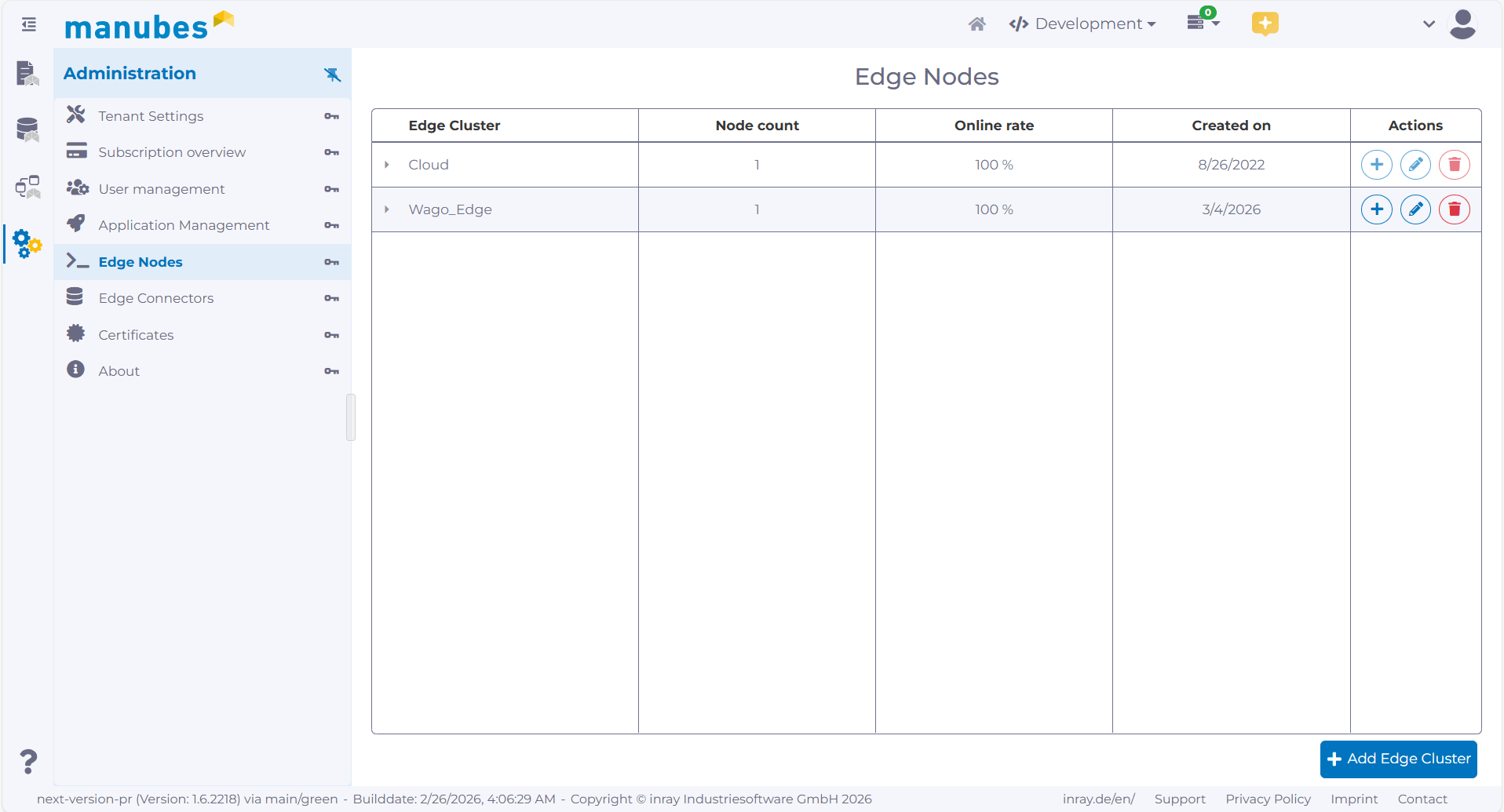
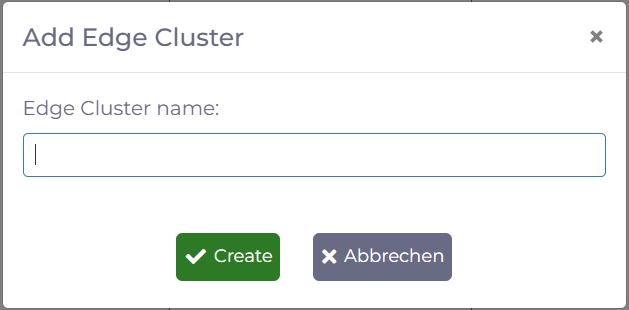
2. Click on the Add Edge Cluster button to create a new cluster. Enter a name (e.g. your production site).
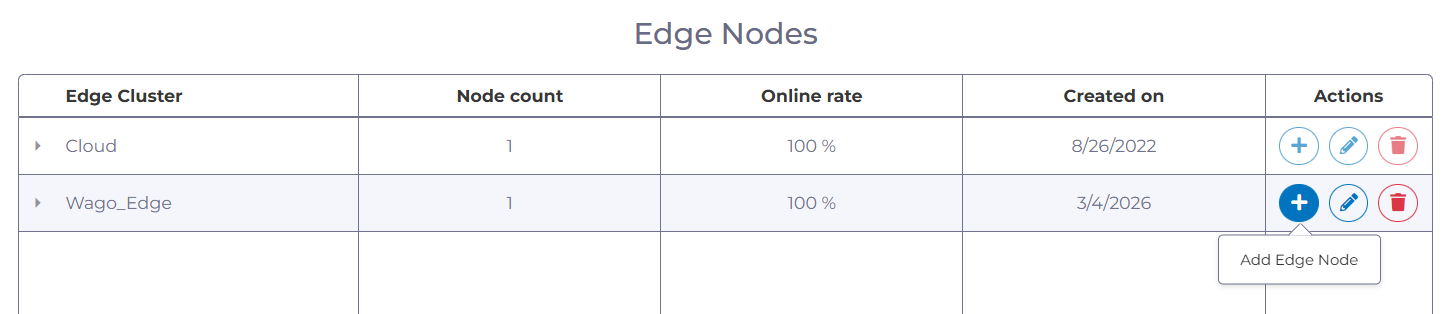
3. Click on the Add Edge Node button next to your newly created Edge Cluster to create a new Edge Node within the cluster. Enter a name and a site.
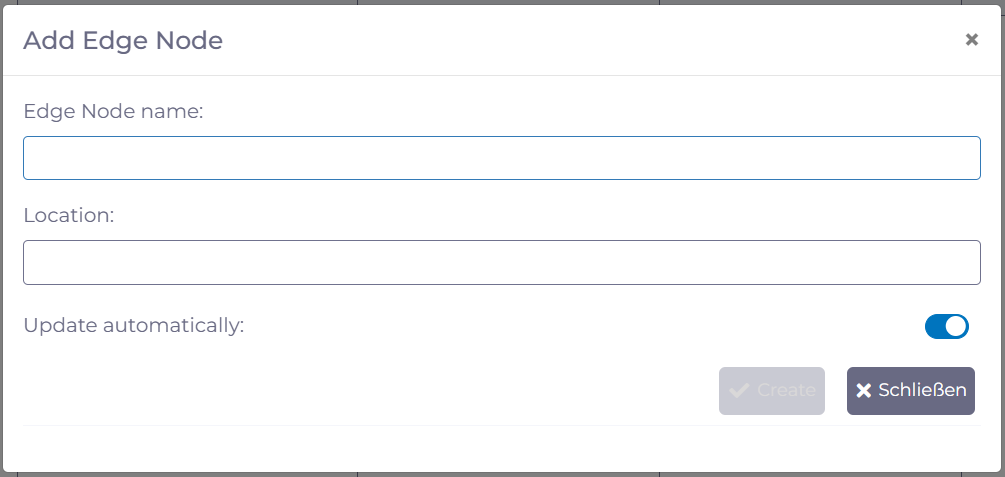
4. You will now see a dialog with information on how to install the Edge Node on your target device.
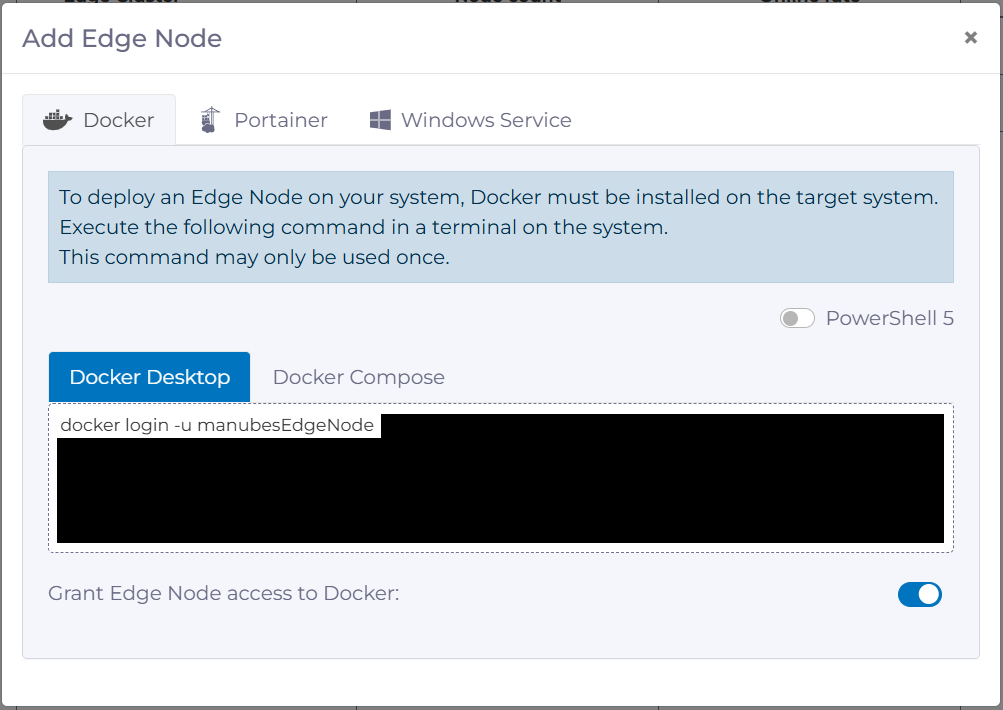
manubes provides the following options for installing Edge Nodes:
Windows Installer:
To install the Edge Node as a Windows service on Windows devices, download the installer and run it on your target device.
Docker / Docker Desktop:
Make sure Docker is set up on your target device or that Docker Desktop is installed. Copy the displayed command (including docker login and docker run) and execute it in the console. The command can only be used once.
Portainer:
To install using the container management platform Portainer, copy the authentication key (“manubes secret”) displayed in manubes. In Portainer, search the App Templates for “manubes Edge Node.” Paste the copied key into the “manubes secret” field and complete the deployment process to install the Edge Node on your target device.
If you accidentally close the installation dialog in manubes, click the Redeploy edge node button to open it again.
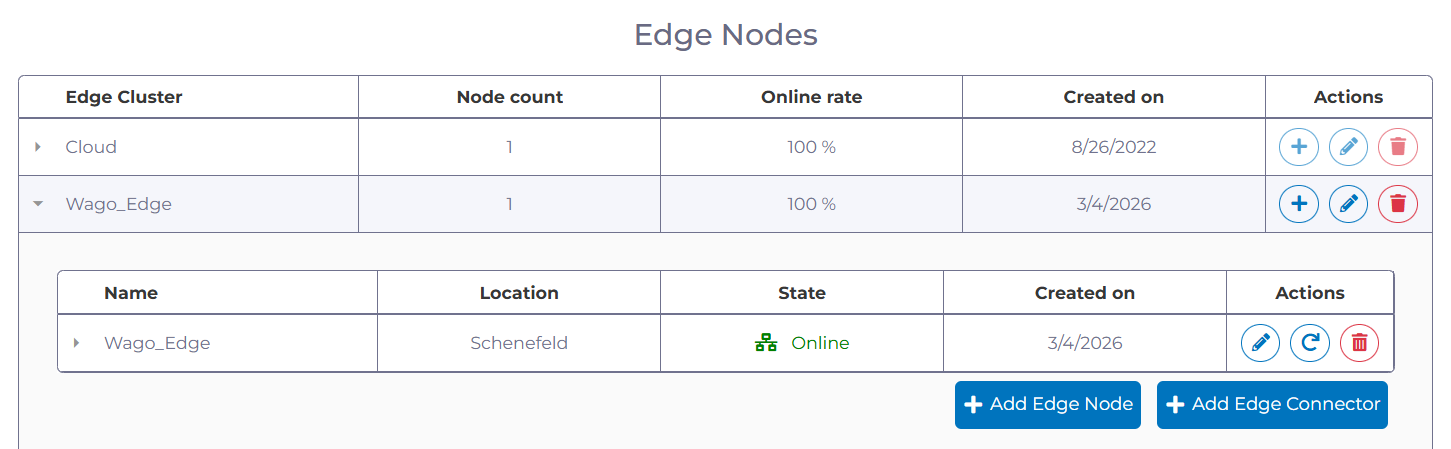
5. After completing the installation process, the status of your Edge Node will be shown as „Online“ in manubes. Additionally, you will be able to view a number of metrics and event log entries.
OPC UA Connection
Step 2: Configuring the OPC UA connection via an Edge Connector
After you install the Edge Node on the device, you can set up a connection to an OPC UA server that is accessible from the edge device. In this example, Kepware Edge runs as a Docker container directly on the edge device.
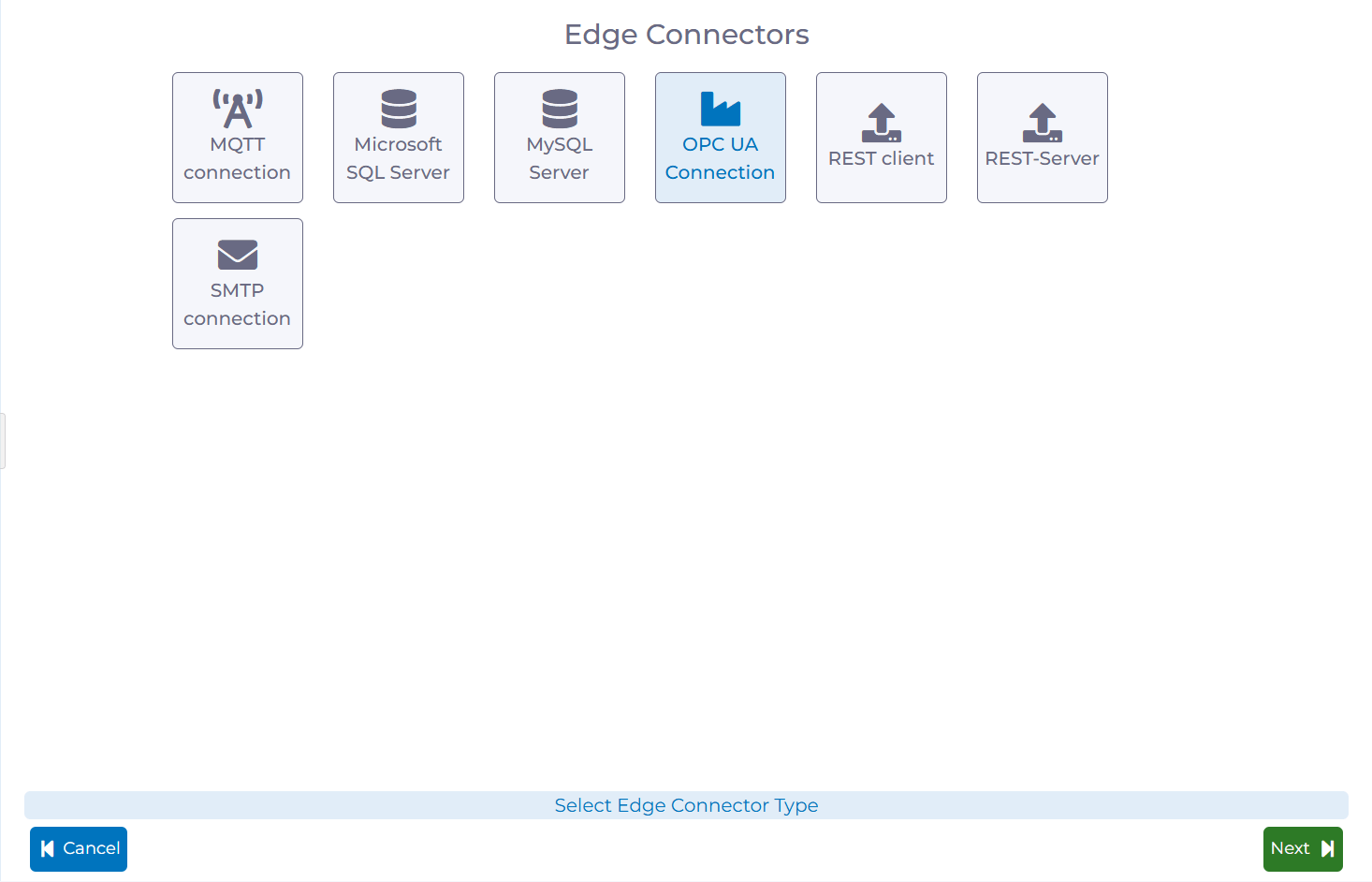
1. In the Administration menu, go to Edge Connectors. Click on New Edge Connector.
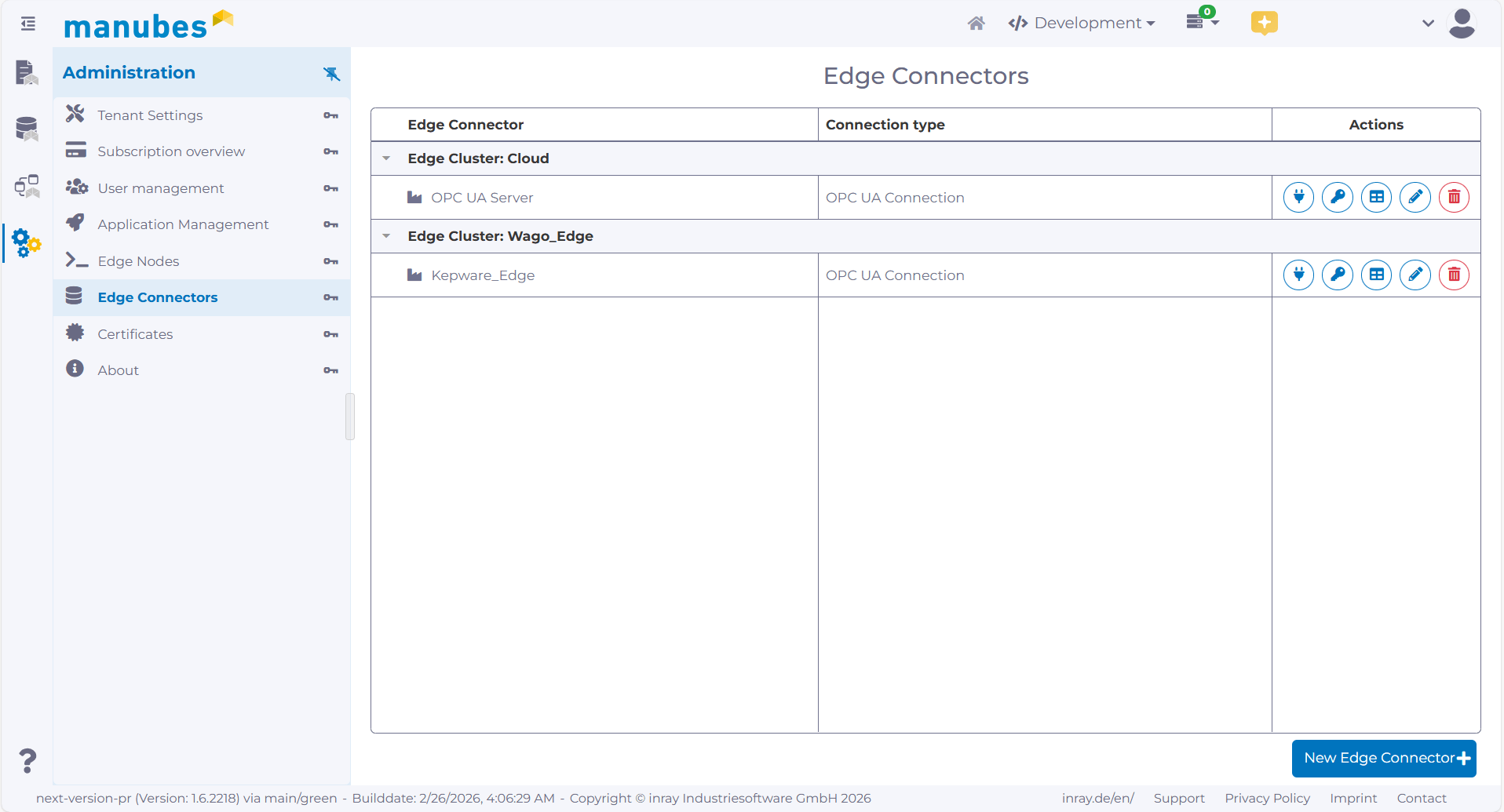
2. Select OPC UA Connection.
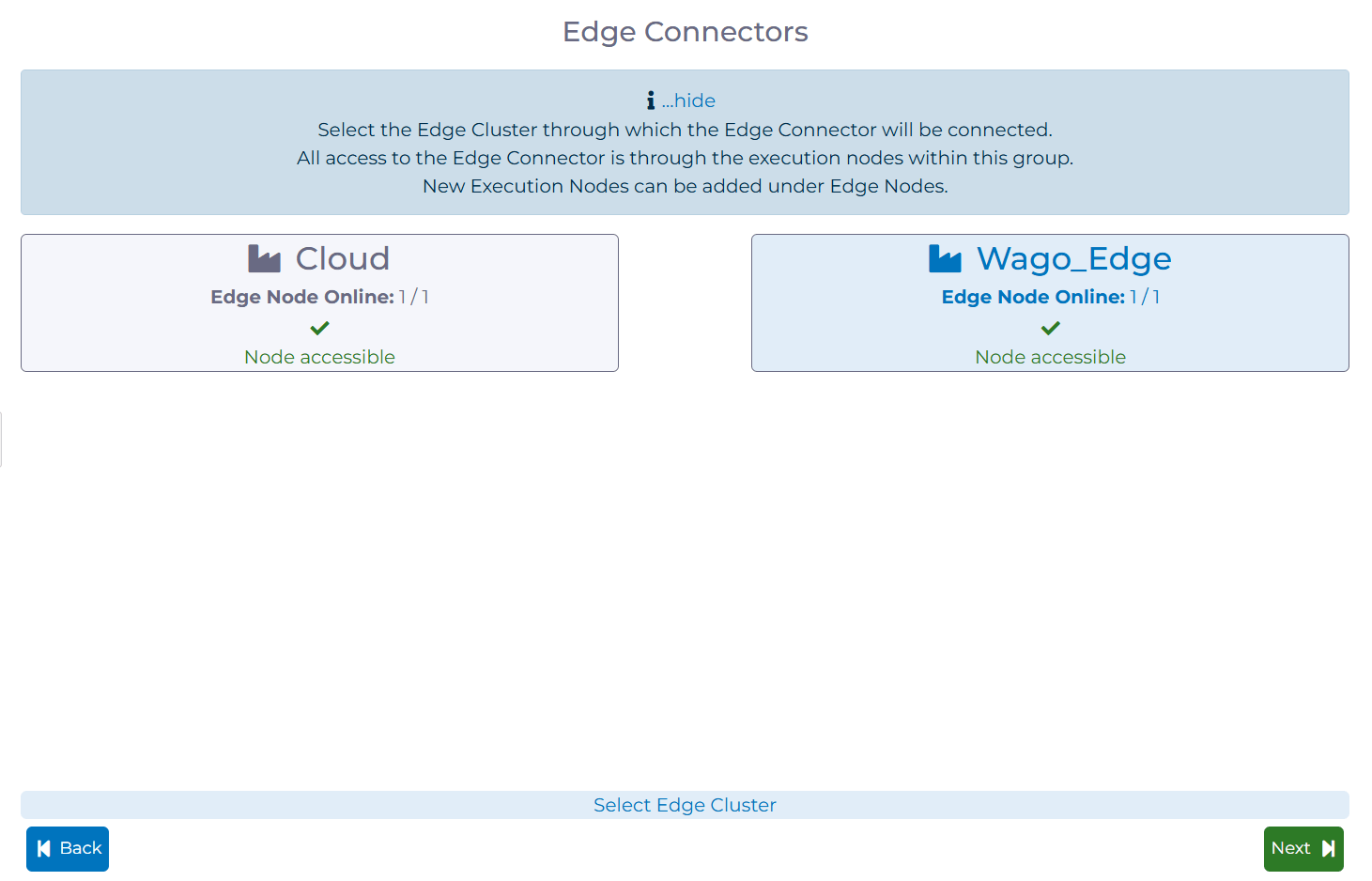
3. Select your newly created Edge Cluster.
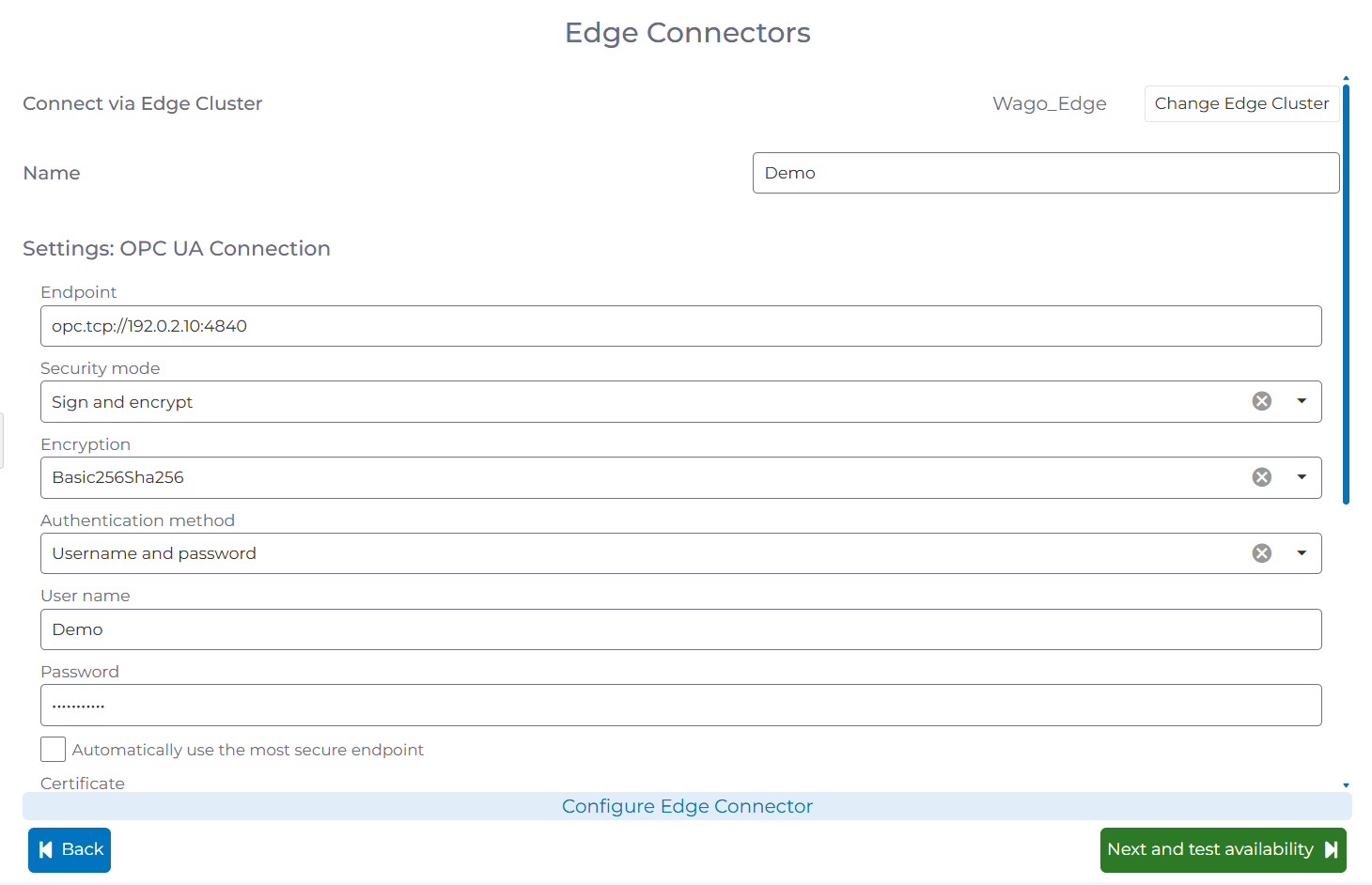
4. Enter the connection details for your OPC UA connection.
Endpoint:
Enter the OPC UA endpoint URL of your OPC UA server.
Security mode:
Select the security mode required by your OPC UA server. If you choose Sign & Encrypt, select a security policy supported by your server.
Authentication:
Select the authentication method (Anonymous, Username and password or Certificate). Based on your selection, enter your credentials or choose a certificate from the dropdown menu.
Note: You can manage certificates in manubes under “Administration” in the “Certificates” section. If you use certificate-based authentication, import the certificate into manubes first, then select it in the connection configuration.
The remaining fields may be kept at default values unless your use case requires a specific setting.
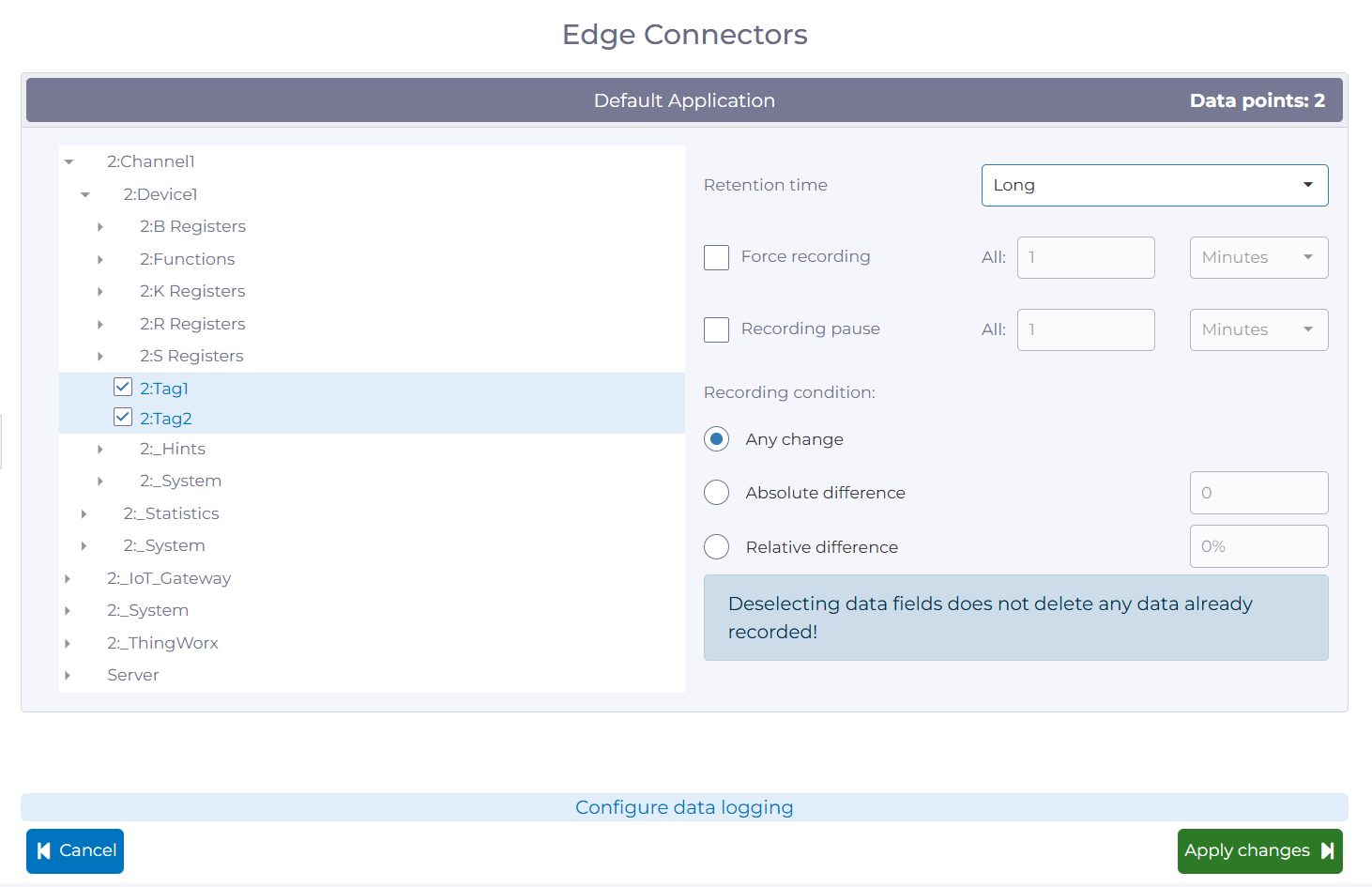
5. If the connection was successful, click on Edit data recording (also accessible from the Edge Connector overview).
Select the data points to record from the server’s address space.
You can also define how long to retain the data and under which conditions changes should be recorded.
Data Visualization
Step 3: Visualizing OPC UA data in real-time
After selecting the OPC UA data points for recording in step 2, they become available as data sources in the Page Designer and the Workflow Designer.
1. In the manubes sidebar, go to Pages and click the plus icon to create a new page.
Drag a Dashboard container onto the canvas. Then drag a visualization component (e.g. KPI card) onto the canvas and place it where needed.
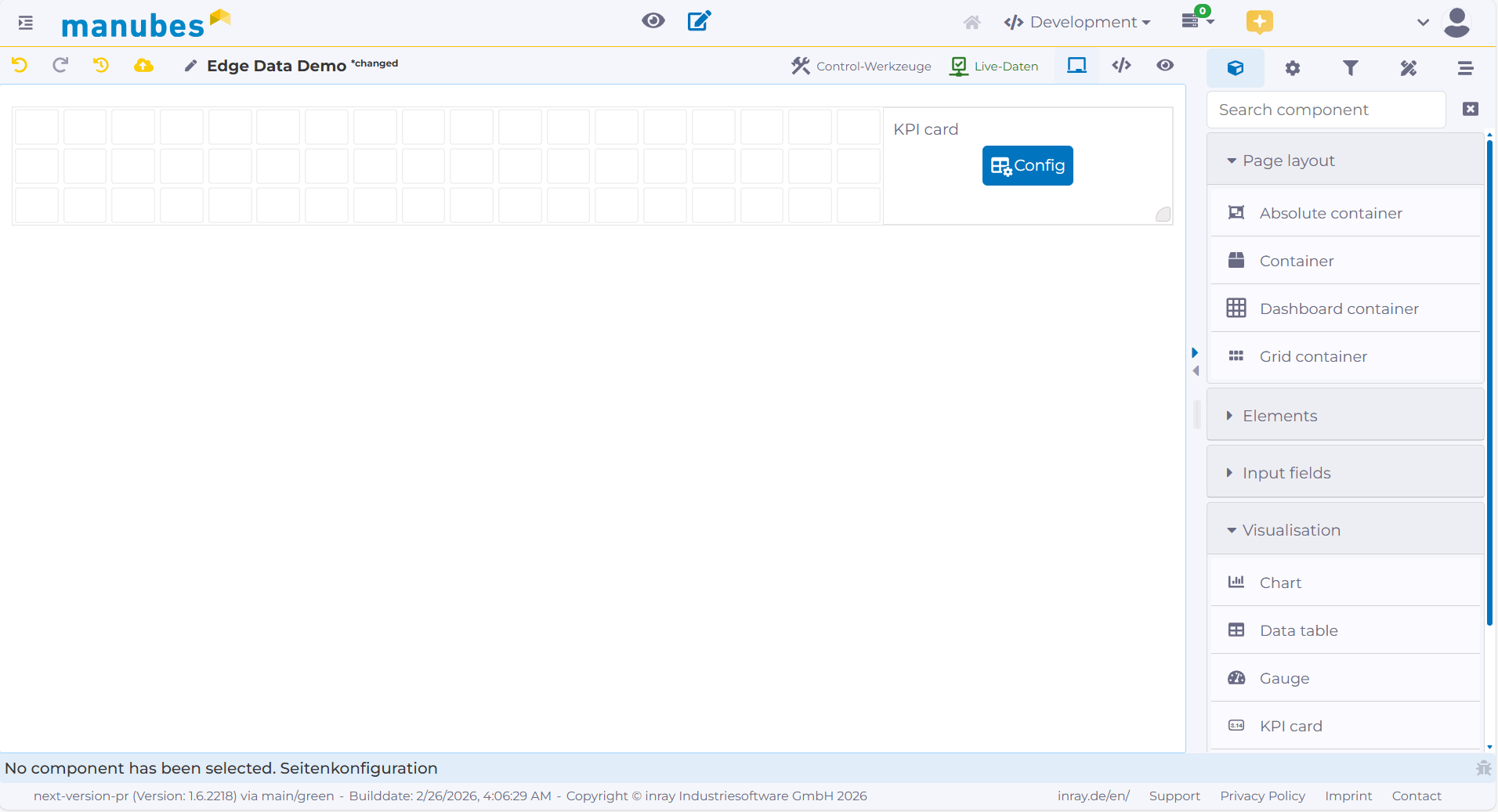
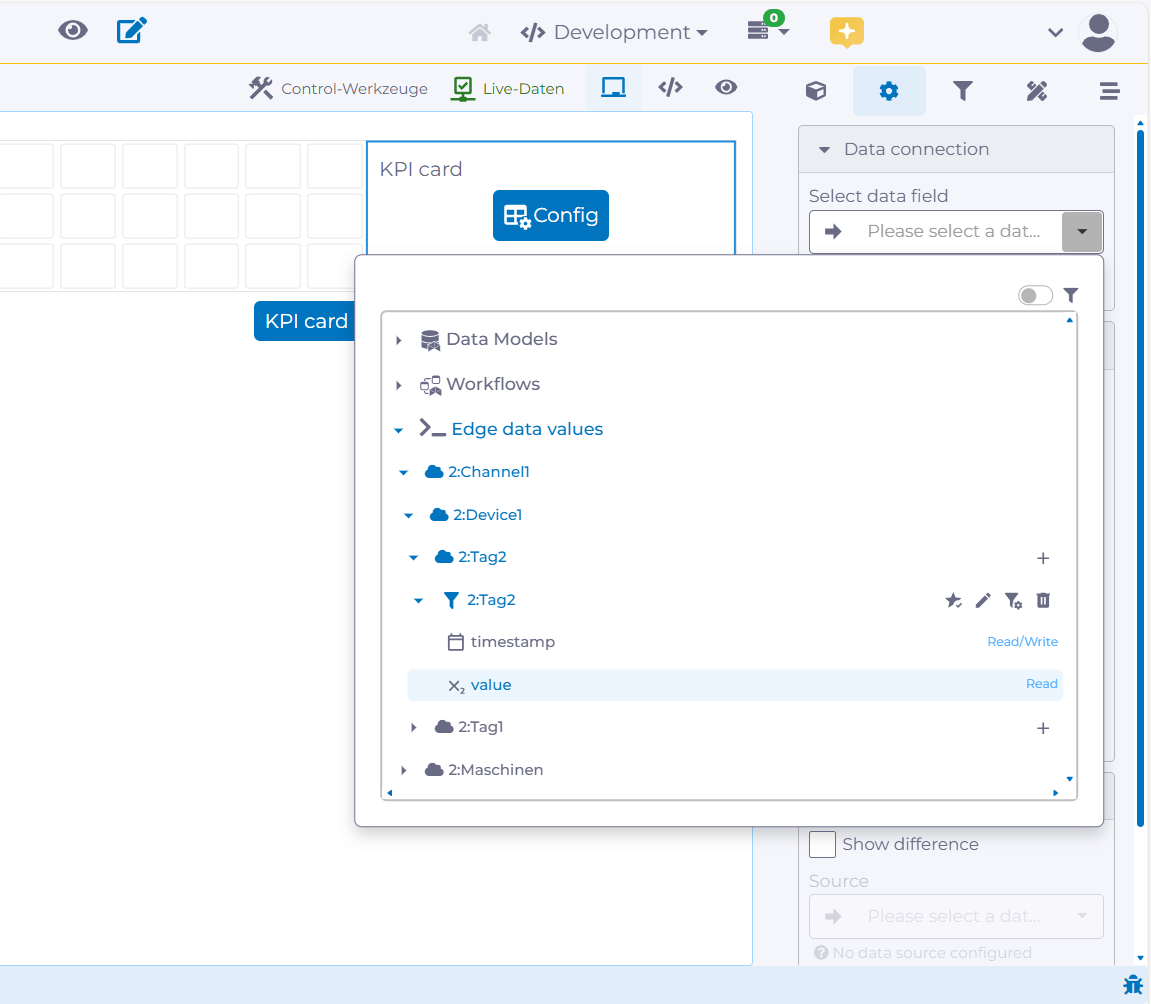
2. Click on an element so that the blue outline appears. In the right-hand panel under Data connection, select the data field you want to visualize.
To visualize live data from an OPC UA server, select Edge data values, navigate to the correct tag and select value.
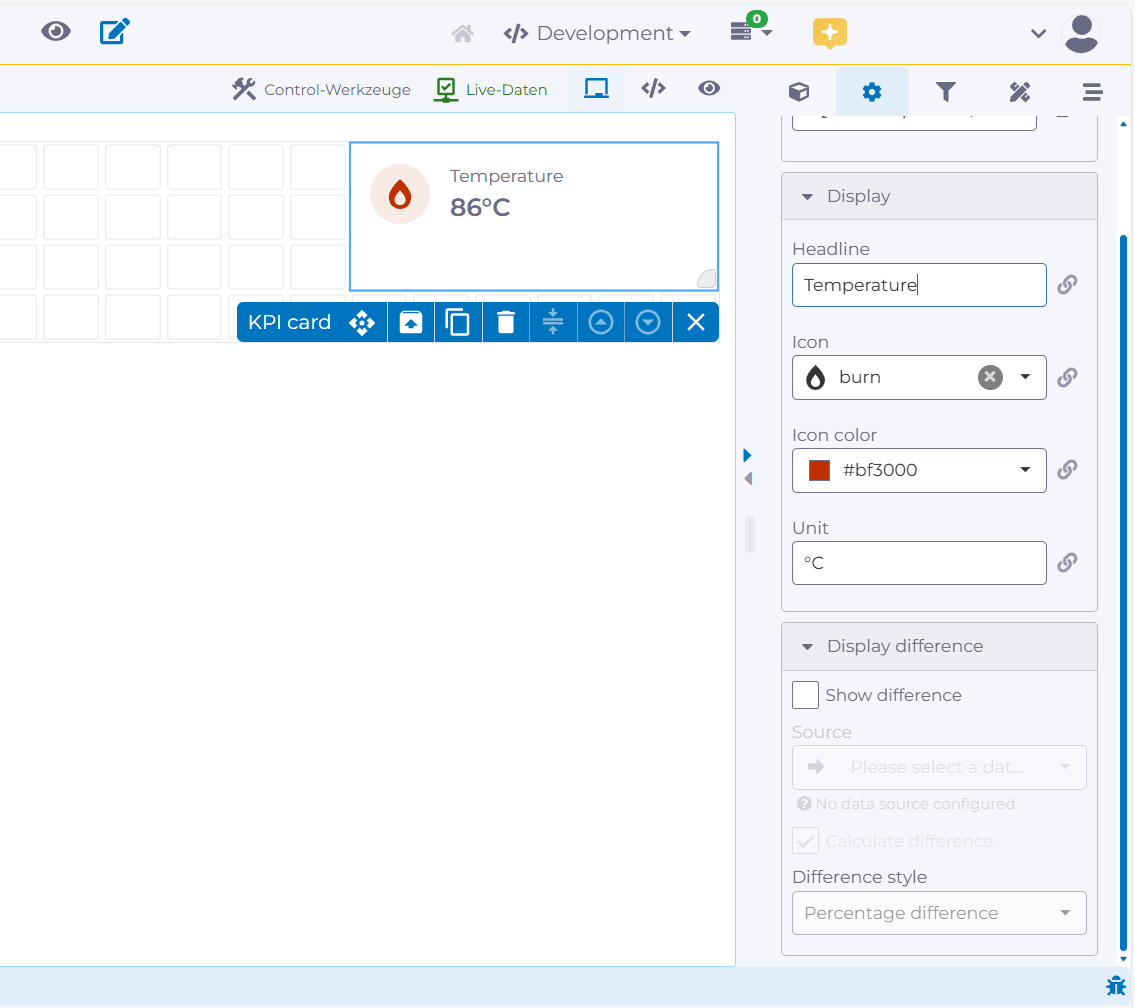
3. Adjust the design of the element under Display.
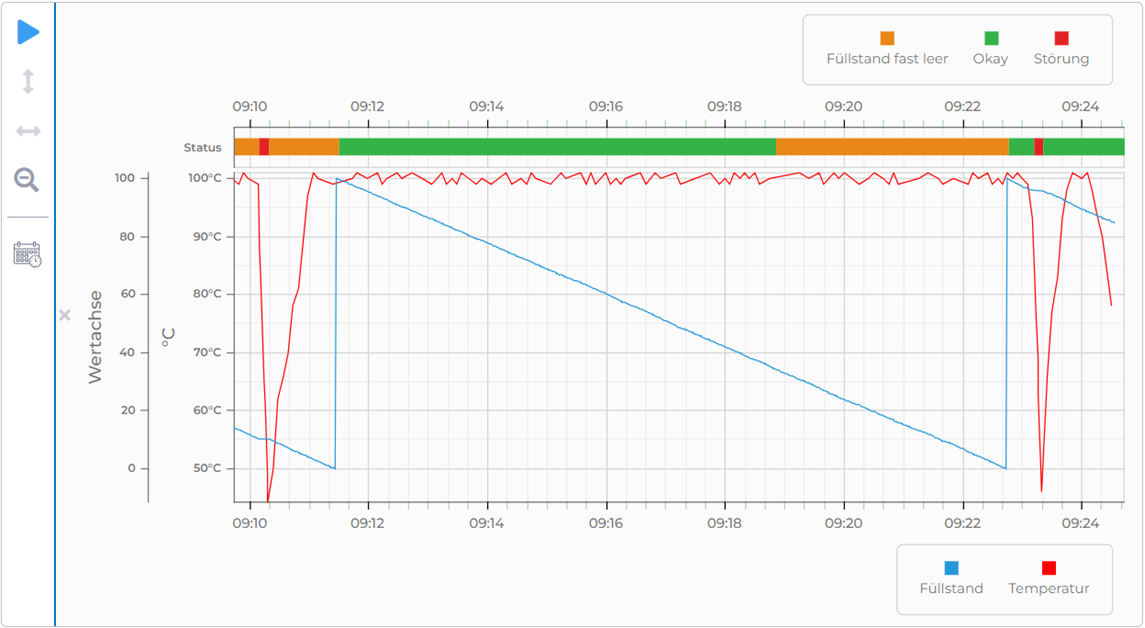
manubes provides a wide range of charts for data visualization. The following example shows temperature and fill level values in a time series chart with an integrated Gantt-style status display.
Need assistance with a configuration? Our team is here to help!
Try manubes for free
Test the different manubes features in your personal cloud environment.

